Editorial review completed 27 May 2026
XX3 Mobile Game Launch and Loading Troubleshooter
This page begins after setup and concentrates on launching individual games, allowing their files to load and resolving access delays; APK steps appear only where installation is relevant.

Start from the correct access route
Separate Android setup from the loading of a game
The phrase “game download” is often used for three different actions: installing the app, selecting a title and waiting for its content to arrive. Here, the concern is the second and third steps after access has already been prepared.
Go to the APK page if the Android app is not yet installed. If the app itself opens but one game remains stuck, examine memory, cache and connection conditions rather than repeating the installation.
- Open either the app or the supported mobile site
- Confirm sign-in before selecting a title
- Choose a single game and allow its first load to finish
- Avoid switching networks during the loading screen
Choosing between web and app access
Test the mobile browser and the installed app separately
A browser session is useful for confirming whether access works at all, while the installed app may provide steadier navigation. Select the route that suits the handset and network, and compare both before deciding that the service is down.
If web access works while the app is sluggish, inspect the app conditions rather than deleting unrelated browser data. Keep the app current, use a steady connection and retain enough free storage for temporary game files.
Load speed and device conditions
Rule out handset and connection issues first
The initial load may stop when memory is tight, battery controls restrict activity or the phone moves between networks. Congested mobile data can make these interruptions more noticeable.
Use a simple test: restart, choose one title, stay on the same connection and wait for the loading sequence to complete. When only that game fails again, report its exact name together with the approximate error time.
- Close resource-heavy background apps
- Keep storage available for game data and updates
- Relax aggressive battery restrictions during the test
- Report the title and visible error rather than a general failure message
Use the controls deliberately
Set boundaries and avoid repeated taps
Decide the session time and spending boundary before selecting a title. That preparation also makes it easier to avoid hurried controls, unnecessary reloads and mistakes around wallet or reward wording.
When an account or wallet screen pauses, wait for it to respond before touching the control again. During lag, repeated taps can make it difficult to know which request was accepted.
Visual reference
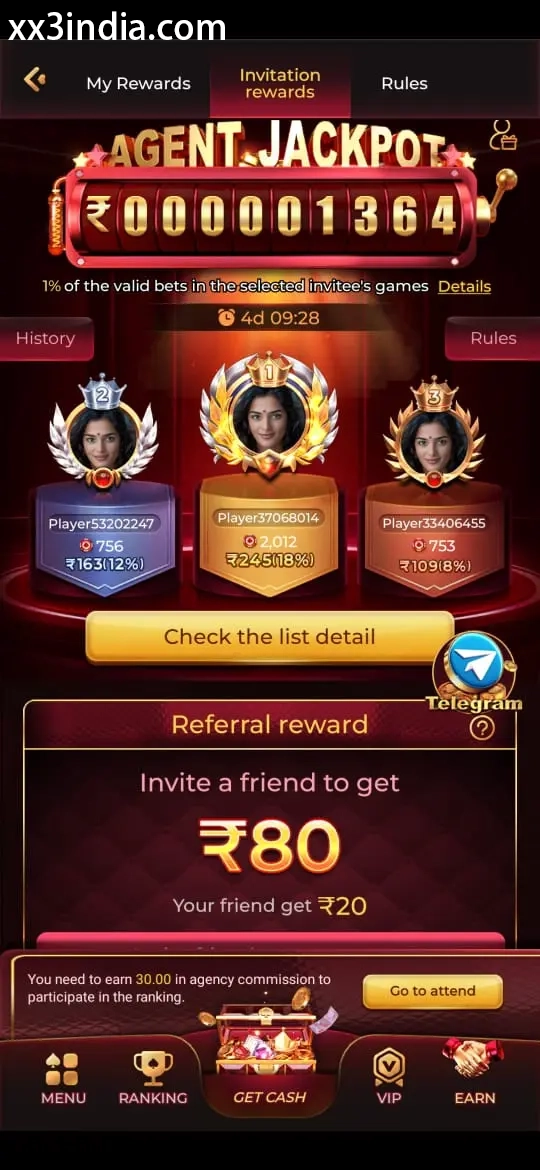
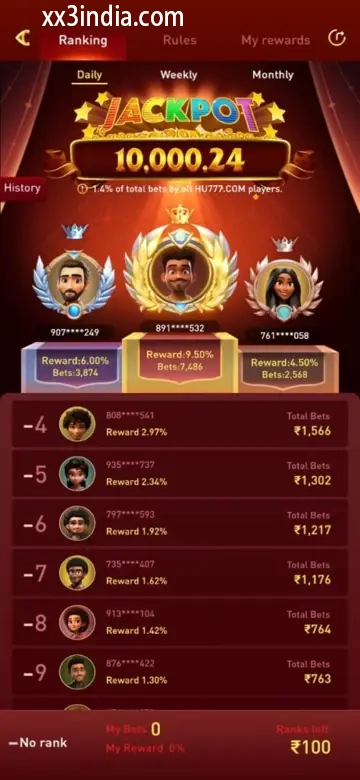
XX3 Game Launch and Loading Layout References
Treat these images as layout references only; the current prompts and account directions on your own phone take priority.

Next useful pages
Move to the guide that matches the issue
Sign-in and account recovery
Use this page when an OTP, password check or sign-in error is blocking the account.
Android setup and install checks
Review where the file came from, what access it requests, whether the phone supports it and how updates should be handled.
Game sections and rules
Compare the available sections, their rules and phone controls before beginning a session.
Quick clarifications
What this page answers
What is the difference between installing the APK and opening a game?
The APK step places the app on Android; game access begins later, when a title is selected and its content loads through the app or browser.
What commonly causes a slow game load?
Likely causes include an unstable signal, low free space, aggressive power saving, outdated cache data or a network change during loading.
Is browser-based access available for XX3 games?
Some titles may open in a mobile browser, but performance and availability can vary with the handset, network and account state.
What should be ready before a game is launched?
Stay on a reliable network, close heavy background activity, verify sign-in and read the title’s controls and labels before proceeding.